React.memo is a higher-order component that skips re-rendering a function component when its props are shallowly equal to the previous render. The wrapper performs a comparison between the incoming props and the previous props; if they match by reference, React reuses the last rendered output. This prevents unnecessary reconciliation work in components that sit deep in a tree and receive unchanged props while a parent re-renders frequently.
The technique sounds simple, but the failure modes are not. Applying the wrapper without checking prop reference stability produces no measurable benefit. Applying it to cheap components can add overhead that cancels the savings. This guide walks through the full process in sequential steps, from identifying a candidate to confirming the fix worked with profiling data.
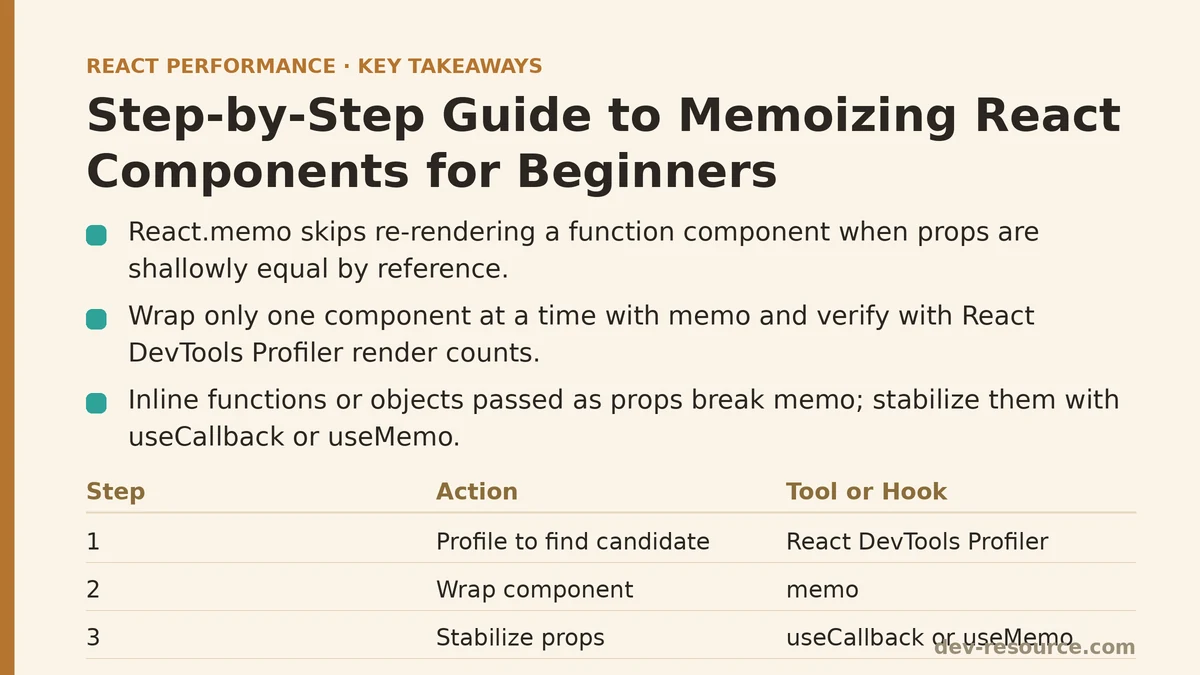
Step 1: Profile the Component Tree to Find a Candidate
Open React DevTools Profiler in your browser and record an interaction that triggers a state update in a parent component. Click through the recorded flamegraph and look for components that re-rendered even though their props did not change between renders.
A solid candidate looks like this:
- It re-renders on every parent state update.
- It receives props that are referentially stable (no inline objects or functions).
- Its render output includes multiple children, conditional logic, or a moderately sized JSX tree.
Open the component in the Profiler and check the “Why did this render?” panel to see what prop changed. If the answer is “the props object itself changed but nothing inside it changed,” that is a direct signal for React.memo.
// Before: this component re-renders whenever the parent's state updates
function ProductCard({ title, price, onAddToCart }) {
  return (
    <div className="product-card">
      <h3>{title}</h3>
      <span>${price.toFixed(2)}</span>
      <button onClick={onAddToCart}>Add to cart</button>
    </div>
  );
}
Write down the component name and its render count before you change anything. This baseline number is what you will compare against after the change.
Step 2: Wrap the Component in React.memo
Import memo from the react package and wrap the function definition. The export line changes slightly depending on whether you use a named function or a default export.
import { memo } from 'react';

function ProductCard({ title, price, onAddToCart }) {
  return (
    <div className="product-card">
      <h3>{title}</h3>
      <span>${price.toFixed(2)}</span>
      <button onClick={onAddToCart}>Add to cart</button>
    </div>
  );
}

export default memo(ProductCard);
The wrapper compares the new props object to the previous one using Object.is semantics for each prop. If every prop reference is the same as last time, the component skips the render entirely. That is the entire API — one argument, a component, and the wrapper returns a memoized version.
Do not apply this to every component yet. One component at a time, with a verification step after each.
Step 3: Stabilize Props with useCallback and useMemo
The most common reason React.memo fails is that the parent passes a new function or object on every render. An inline arrow function creates a new reference each time the parent runs, which defeats the shallow comparison.
// This defeats memoization: onAddToCart is a new function reference on every parent render
function ProductList({ products }) {
  return (
    <div>
      {products.map(product => (
        <ProductCard
          key={product.id}
          title={product.title}
          price={product.price}
          onAddToCart={() => addToCart(product.id)}
        />
      ))}
    </div>
  );
}
Fix this by wrapping the function in useCallback with a dependency array. If the function does not depend on any changing values, pass an empty array. If it depends on state or props, list those dependencies so the reference only changes when the underlying values change.
import { useCallback } from 'react';

function ProductList({ products, onAddToCart }) {
  return (
    <div>
      {products.map(product => (
        <ProductCard
          key={product.id}
          title={product.title}
          price={product.price}
          onAddToCart={useCallback(() => onAddToCart(product.id), [onAddToCart, product.id])}
        />
      ))}
    </div>
  );
}
The same logic applies to objects passed as props. An inline object literal — config={{ theme: 'dark' }} — creates a new reference every render. Replace it with useMemo or hoist the object to module scope if it never changes.
import { useMemo } from 'react';

const DARK_THEME = { theme: 'dark', radius: 4 };

function ProductList({ products }) {
  const theme = useMemo(() => DARK_THEME, []);
  return <ProductCard theme={theme} />;
}
Step 4: Re-run the Profiler and Compare Render Counts
Go back to React DevTools Profiler and record the same interaction you recorded in Step 1. Find the memoized component in the flamegraph and check its render count.
A successful result looks like this: the component no longer appears in the flamegraph when the parent re-renders with the same props. A failed result looks like this: the component still re-renders, and the “Why did this render?” panel shows a changed prop reference.
If it still re-renders, inspect the props panel. Find which prop has a new reference and trace where it is created in the parent. Common culprits:
- An inline arrow function not wrapped in
useCallback. - An inline object or array literal not wrapped in
useMemo. - A callback that depends on a state value that changes more often than the component’s own props change.
Fix the unstable reference and re-run the profiler. Repeat until the render count drops to zero when the parent re-renders with unchanged data.
Step 5: Measure Whether the Change Helped, Not Just Whether It Worked
A render count of zero does not mean the change was worth making. Compare the total re-render time for the recorded interaction before and after adding the memoization. Select the entire interaction in the Profiler and read the “Render duration” at the top of the flamegraph.
The change is worth keeping if the total render duration decreased measurably — a reduction of several milliseconds on a complex interaction, or a drop of multiple frames on a lower-end device. The change is not worth keeping if the duration stayed the same or increased. That situation happens with components that render so cheaply that the shallow comparison cost exceeds the render cost it prevents.
A rule of thumb that works in practice: memoize when the component renders a subtree with more than about twenty elements, when it receives props that are expensive to reconcile, or when it sits lower in the tree and re-renders as a side effect of an ancestor’s state update. Skip it for simple label components, icon wrappers, and small presentational elements.
Table of decision criteria:
| Condition | Action |
|---|---|
| Component re-renders with unchanged, stable props | Apply memo; verify render count drops |
| Props include inline functions or objects | Stabilize references first, then memo |
| Render cost is a few milliseconds or less | Skip; overhead may cancel the savings |
| Props change on every parent render | Skip; memo provides no benefit |
| Render count drops but total time increases | Remove memo; the comparison costs more than it saves |
When to Expect No Improvement
There are two scenarios where React.memo produces no measurable improvement even when implemented correctly. The first is passing new props on every render. If a parent creates a new object for a child on each of its own renders, the shallow comparison fails every time, and the memoized component renders just as often as the unmemoized one. The second is a component that is already cheap. A component that just renders a <span> with a string prop has an render cost near zero; the Object.is comparison on the props runs at a comparable speed, so the net gain is negligible.
In both cases, the profiler shows the truth. If the render count stays flat or the total time does not move, remove the wrapper and look elsewhere for performance gains. The other common suspects are large lists without keys, expensive computation in the render body, and missing useMemo on derived data that is passed down the tree.
The Verification Checklist
Run through these checks in order before moving on to the next component:
- Confirm the component re-rendered unnecessarily in the baseline profiler recording.
- Confirm the props are referentially stable or have been stabilized with
useCallback/useMemo. - Confirm the render count dropped to zero or near-zero on the same interaction after wrapping.
- Confirm the total interaction render time decreased, not just the component’s own count.
- Confirm no other component in the tree regressed — sometimes memoization changes when children render, so check the whole flamegraph.
That last point matters more than beginners expect. Memoizing one component can change the render behavior of its siblings, because React may bail out of rendering the entire subtree differently. Re-run the full interaction and compare the total time, not just the one component, to know the change was a net positive.
For a four-step workflow that applies to most cases: profile to identify the candidate, wrap in React.memo, stabilize prop references, and verify with the profiler that both render count and total time improved. Each step builds on the previous one, and skipping the verification step — the most commonly omitted part — leads to memoized code that looks correct but delivers nothing.
If you can share the component structure and the profiler output from a specific interaction, the next step for your particular case becomes far easier to pin down.
Related guides: React Memoization: When and How to Use memo, useMemo, and useCallback, React Memoization: A Beginner Tutorial and Step-by-Step Guide, and When to Actually Use React.memo (And When Not To).
🔗 Recommended Reading
- React Performance Mistakes in Fintech Dashboards and How to Fix Them
- Lazy Loading Images and Components in React: A Step-by-Step Tutorial
- React Memoization: When and How to Use memo, useMemo, and useCallback
- Next.js App Router Performance Optimization for Beginners: A Step-by-Step Guide
- Measuring and Fixing React Re-render Performance: A Step-by-Step Walkthrough