A common assumption among developers new to the Next.js App Router is that the framework handles performance automatically, and that any slow page must be coming from somewhere in their own code. The opposite is often true. The App Router is a set of defaults and primitives, not an autopilot: if you don’t understand where rendering happens, what gets cached, and how much JavaScript reaches the browser, the defaults can quietly work against you. Most beginner performance problems in the App Router trace back to a small number of habits, and almost all of them are fixable without a rewrite.
This guide is organized as a troubleshooting checklist. Each section describes a symptom you’re likely to notice, the underlying cause, and a concrete fix with code you can adapt.
Symptom: The Page Loads Fast on Your Machine but Feels Slow for Real Users
Cause
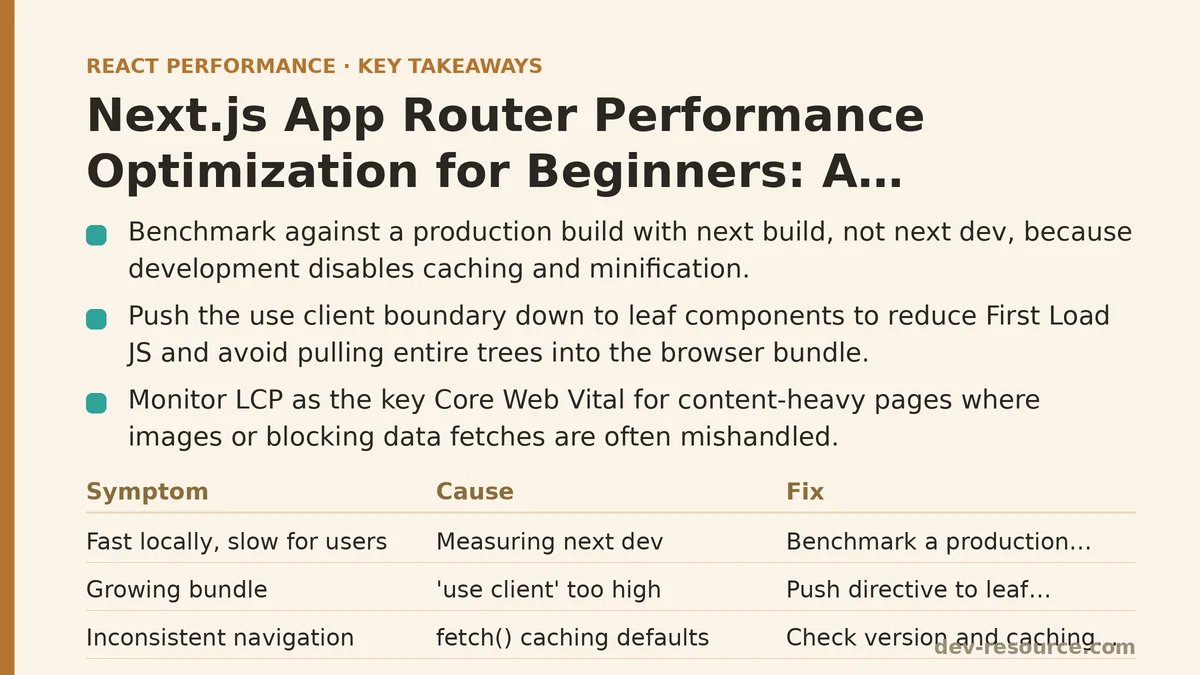
You’re measuring the wrong thing. Running next dev disables most of the production optimizations the App Router relies on: bundling is not minified the same way, caching is largely bypassed, and the compilation step on each request inflates timings. A page that loads in 800ms in development tells you nothing about production performance.
Fix
Always benchmark against a production build:
next build
next start
Then open your browser’s Network panel with throttling set to “Fast 3G” or a mid-range mobile profile, or run Lighthouse against the local production server. The Core Web Vitals you care about here are LCP (Largest Contentful Paint), INP (Interaction to Next Paint), and CLS (Cumulative Layout Shift). If you only remember one number, remember LCP — it’s the metric most often broken on content-heavy pages when images or blocking data fetches are mishandled.
The trade-off is that next build takes longer and you lose fast refresh, so it’s a step you take at the end of a change, not on every keystroke.
Symptom: “use client” Is Sprinkled Everywhere and the Bundle Keeps Growing
Cause
This is the single most common mistake. React Server Components are the default in the App Router, but adding "use client" to a file marks that file and everything it imports as a client component. If you add the directive to a high-level layout or a large component to make one small interaction work, you quietly drag the entire subtree into the browser bundle.
Fix
Push the "use client" boundary as far down the tree as possible. Only leaf components that need state, effects, or browser APIs should carry the directive.
// app/dashboard/page.jsx  (Server Component by default)
import { fetchStats } from '@/lib/data';
import LikeButton from './LikeButton';       // client
import StatsChart from './StatsChart';       // server

export default async function DashboardPage() {
  const stats = await fetchStats();
  return (
    <section>
      <StatsChart data={stats} />
      <LikeButton postId={stats.id} />
    </section>
  );
}
// app/dashboard/LikeButton.jsx
'use client';
import { useState } from 'react';

export default function LikeButton({ postId }) {
  const [liked, setLiked] = useState(false);
  return (
    <button onClick={() => setLiked(!liked)}>
      {liked ? 'Liked' : 'Like'}
    </button>
  );
}
Here StatsChart stays a server component and never ships JavaScript, while LikeButton — the only interactive piece — ships a small client bundle. To verify, run next build and read the route table it prints: each route shows its First Load JS in kB. That single number is your fastest feedback loop for whether the client boundary is moving in the right direction.
When NOT to apply this: don’t force a component to be a server component just because it has no state today. If you know it will need interactivity, splitting it across the boundary prematurely can make the data flow harder to follow. Start simple and only split when the bundle justifies it.
Symptom: The First Load Is Fast but Navigating Between Pages Feels Instant One Time and Slow the Next
Cause
Fetching behavior. In the App Router, fetch() is not the plain browser fetch. By default it’s extended with caching semantics, and the default depends on your Next.js version and configuration. If you’re fetching data that changes often and it’s being cached, users see stale data or unexpected behavior; if you disable caching everywhere to fix that, you lose the benefit that made navigation fast in the first place.
Fix
Be explicit about caching on every data fetch rather than relying on defaults. The two levers are cache and next.revalidate:
// Cached indefinitely until manually invalidated
const config = await fetch('https://api.example.com/config', {
  cache: 'force-cache',
});

// Revalidate at most every 60 seconds
const posts = await fetch('https://api.example.com/posts', {
  next: { revalidate: 60 },
});

// Always fresh, never cached
const live = await fetch('https://api.example.com/live', {
  cache: 'no-store',
});
A workable default rule: no-store for anything per-user or real-time, revalidate for content that updates on a known cadence, force-cache only for data that truly never changes between deployments. When you do cache, you can invalidate on demand from a Server Action or route handler with revalidatePath('/some-route') or revalidateTag('posts').
The failure mode to watch for: using no-store on a homepage feed turns every visit into a fresh round trip and erases most of the server-rendering advantage. If your LCP regresses after adding no-store, that’s usually the cause.
Symptom: A Slow Data Source Blocks the Entire Page
Cause
Awaiting a slow fetch in a parent component blocks rendering of that component and everything under it. If the page can’t render its shell until the slowest promise resolves, the user stares at a blank screen.
Fix
Wrap the slow part in <Suspense> with a fallback so the rest of the page can stream immediately. This is one of the most valuable primitives the App Router gives beginners:
import { Suspense } from 'react';
import SlowRecommendations from './SlowRecommendations';

export default function ProductPage() {
  return (
    <main>
      <h1>Product</h1>
      {/* The shell paints immediately. */}
      <Suspense fallback={<p>Loading recommendations…</p>}>
        <SlowRecommendations />
      </Suspense>
    </main>
  );
}
Streaming delivers HTML to the browser progressively: the fast parts arrive first and hydrate first, and the slow segment fills in when ready. This improves perceived performance and often LCP, because the user sees meaningful content sooner even if the total time to full page is unchanged.
A caveat: <Suspense> does not make a slow fetch faster; it just lets you trade total completion time for earlier first paint. If a query consistently takes many seconds, fix the query or the upstream API before adding fallbacks around it.
Symptom: Large Dependencies Are Reaching the Client
Cause
Importing a heavy library inside a client component pulls the whole thing into the browser bundle. Date libraries, charting libraries, and UI kits are frequent offenders.
Fix
Two complementary approaches. First, check what’s in your bundle rather than guessing. @next/bundle-analyzer produces a visual treemap of every chunk:
npm install --save-dev @next/bundle-analyzer
// next.config.js
const withBundleAnalyzer = require('@next/bundle-analyzer')({
  enabled: process.env.ANALYZE === 'true',
});
module.exports = withBundleAnalyzer({});
Then run ANALYZE=true next build. Look for large blocks you didn’t intend to ship. Once you find them, load-on-demand with next/dynamic so the code is only fetched when the component is rendered:
import dynamic from 'next/dynamic';

const HeavyChart = dynamic(() => import('./HeavyChart'), {
  loading: () => <p>Loading chart…</p>,
  ssr: false,
});
Set ssr: false only for components that can’t render on the server (those relying on window, for example). Leaving it true keeps the component server-rendered and only defers its JavaScript — usually the better choice, since it avoids an empty flash and preserves the server-rendered HTML for crawlers.
A Checklist You Can Reuse
| Symptom | Likely Cause | First Fix to Try |
|---|---|---|
| Fast locally, slow in production | Testing against next dev |
Build and measure with next build && next start |
| Bundle growing without obvious reason | "use client" set too high in the tree |
Move the directive to leaf components only |
| Navigation inconsistent between visits | Implicit fetch caching defaults | Set cache / next.revalidate explicitly |
| Blank screen until slow data resolves | Awaited fetch blocking the shell | Wrap the slow segment in <Suspense> |
| Unexpected large chunks in the bundle | Heavy client-side imports | Run bundle analyzer, apply next/dynamic |
The Order of Operations That Usually Works
Fix boundaries before you fix caching, and fix caching before you fix streaming. Most beginner slowdowns come from client boundaries that are too large, so measure the First Load JS figure from next build first. Once the bundle is reasonable, make caching decisions explicit. Then add <Suspense> only around the pieces that are demonstrably slow. Doing it in the reverse order — reaching for streaming and dynamic imports before the client boundary is right — tends to add complexity without moving the metrics that matter.
Working through an App Router performance issue and not sure which symptom you’re looking at? Describe what you’re seeing and I can help you narrow down where in the checklist to start.
Related guides: Code Splitting in the Next.js App Router: A Practical Walkthrough, React Hydration Performance: A Step-by-Step Guide to Diagnosing and Fixing Slow Hydration, and Common Mistakes That Slow Down Next.js Image Optimization.
🔗 Recommended Reading
- React Performance Mistakes in Fintech Dashboards and How to Fix Them
- Lazy Loading Images and Components in React: A Step-by-Step Tutorial
- React Memoization: When and How to Use memo, useMemo, and useCallback
- Measuring and Fixing React Re-render Performance: A Step-by-Step Walkthrough
- Web Vitals Optimization for React SPAs: A Step-by-Step Guide