After reading this guide, you will be able to diagnose and fix the four most common configuration errors that cause next/image to underperform, and you will know how to verify each fix with measurable results. The checklist format below is designed to mirror the order in which problems surface during a Lighthouse audit: if you see a specific failing metric, jump straight to the matching section.
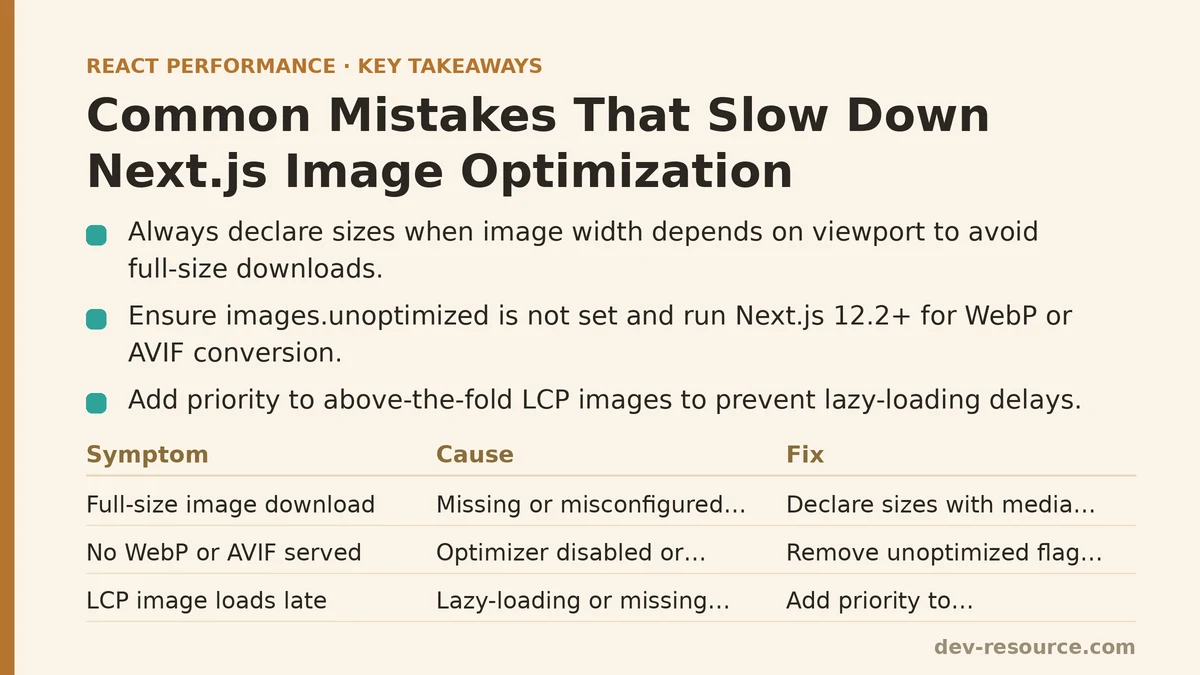
Symptom: The Page Downloads the Full-Size Image on Every Viewport
Cause: The sizes attribute is missing, misconfigured, or the source image is larger than the maximum width declared in the srcset. Without sizes, the browser assumes the image renders at its intrinsic width (or at 100vw inside a fluid container) and picks the largest file in the srcset that it thinks fits the layout. On a mobile device with a 390px viewport, the browser may still download a 2400px-wide image.
Fix: Always declare sizes when the rendered width of an image depends on the viewport. For a full-width hero that shrinks on desktop, the pattern is:
import Image from 'next/image';

export default function Hero() {
  return (
    <Image
      src="/hero.jpg"
      alt="Hero"
      sizes="(max-width: 768px) 100vw, 900px"
      width={1600}
      height={900}
    />
  );
}
The (max-width: 768px) media condition tells the browser that below 768px, the image takes up the full viewport width (100vw); above that, it renders at 900px. When Next.js generates the srcset, it will include widths up to 1600px (the intrinsic width). The browser then picks the smallest file that covers the needed display size.
Verify: Open the Network tab, set the device toolbar to a 390px-wide viewport, and reload. The transferred file should be close to the width of the viewport (multiplied by device pixel ratio), not the full source width. A 390px viewport on a 2x display should fetch around a 780px-wide image, not a 1600px one.
Symptom: No WebP or AVIF Files Are Being Served
Cause: The image optimization pipeline has been disabled, or a version mismatch exists between the Next.js runtime and the image optimizer. Running next start on a version older than 12.2, for instance, will not automatically optimize images; the /_next/image endpoint returns a 404 or falls back to the raw file. Also, if the images.unoptimized flag is set in next.config.js (for static exporting), no conversion happens at all.
Fix: Ensure the flag is not set, and that you are running a current version:
# next.config.js
module.exports = {
  images: {
    unoptimized: false, // Default, but explicit is fine
    formats: ['image/avif', 'image/webp'],
  },
};
For static exports via output: 'export', you must either enable an external optimizer (like Cloudinary or imgix) through the loader config, or accept that the optimizer is bypassed. If you are using next dev, note that optimization happens on-the-fly and may show fewer formats during development; run a production build (next build && next start) before judging the output.
Verify: Inspect the network response headers for an image with .webp or .avif in the URL. The Content-Type header should show image/webp or image/avif on a supporting browser. Also check the file size difference: a converted image should be 30–70% smaller than the original JPEG or PNG.
Symptom: The LCP Image Loads After the Text
Cause: The above-the-fold image is being lazy-loaded by default, or it has no priority prop. In next/image, lazy loading is on by default (loading="lazy"). For the Largest Contentful Paint (LCP) element, this defers the fetch until the browser is about to scroll it into view, which can push the LCP timing past 2.5 seconds even when the image is small.
Fix: Add priority to the LCP image, and disable lazy loading. This is not a min/max decision; it is a requirement for the above-the-fold image on any page:
import Image from 'next/image';

export default function ArticleHeader() {
  return (
    <div>
      <h1>Article Title</h1>
      <Image
        src="/cover.jpg"
        alt="Cover"
        width={1200}
        height={630}
        priority
      />
    </div>
  );
}
The priority prop also adds fetchpriority="high" to the rendered <img> tag, which tells the browser to prioritize this request. Do not apply priority to multiple images on the same page; the browser will treat them all as high-priority, which dilutes the effect.
Verify: In DevTools, look at the Network request for the LCP image. It should start early in the page load waterfall, before the main JavaScript finishes executing. You can also run Lighthouse and check the “Largest Contentful Paint element” audit: it should mark the image as loaded with priority.
Symptom: Layout Shifts After the Image Appears
Cause: Missing width and height attributes, or using dynamic values like a percentage-based aspect ratio without a containing box that enforces dimensions. When the browser does not know the intrinsic ratio of the image before it arrives, it reserves zero space, and the image pushes content down when loaded. Next.js warns about this in the console: “Image with src … has either width or height modified, but not the other.”
Fix: Always pass numeric width and height that match the source file’s intrinsic dimensions. Next.js will compute the aspect ratio and reserve the correct space automatically. If the rendered size differs from the intrinsic size, use CSS to scale the image while preserving the ratio:
<Image
  src="/thumbnail.jpg"
  alt="Thumbnail"
  width={640}
  height={360}
  className="w-full h-auto"
/>
The h-auto class ensures the height scales with the width without distorting the aspect ratio, while the intrinsic dimensions prevent layout shift.
Verify: In Lighthouse, the Cumulative Layout Shift (CLS) score should be below 0.1. Also, run the page in a fresh browser session and scroll slowly; observe whether any content jumps after the image loads. For a quick check, compare the page’s bounding-box positions before and after the image request completes using the Performance panel’s “Layout Shift” recording.
Symptom: The Image Optimizer Is Overwhelmed or Blocking the Server
Cause: Running the built-in image optimizer on the same Node.js server as your application. Every unique image request triggers a server-side transformation (resizing, format conversion, caching). Under traffic spikes, the optimizer competes for CPU with API routes and SSR, causing high TTFB and image 503 errors. This is the most common failure in production, not in development.
Fix: Move the optimizer off the main server. Three options, in increasing order of effort:
- External loader – Point
loaderto a CDN service like Cloudinary, imgix, or Akamai. Next.js will generate URLs for the external service instead of hitting/_next/image. - Self-hosted optimizer worker – Run the optimizer as a separate serverless function (e.g., a Vercel Edge Function or a Lambda) and set
loaderto that function’s URL. - Volume-optimized cache – If you must keep the built-in loader, enable a shared cache (Redis or S3) and set
images.minimumCacheTTLto a high value, like 60 seconds or more, to reduce repeated transformations of the same file.
The external loader approach is the fastest to implement for a single image domain:
// next.config.js
module.exports = {
  images: {
    loader: 'cloudinary',
    path: 'https://res.cloudinary.com/your-cloud-name/image/upload/',
  },
};
Note that changing the loader affects all next/image components globally. Test with a subset of pages first by conditionally setting the loader based on the request’s user agent or environment variable.
Verify: Load a page with multiple images under normal traffic (e.g., using k6 with 50 concurrent users). Check the server’s CPU usage and the image endpoint’s response times. If you see latency spikes correlating with image requests, the optimizer is the bottleneck. After moving the loader, the same test should show flat CPU and sub-100ms image response times.
Quick Reference: What to Check When You See a Failing Metric
| Failing Metric | Likely Cause | Fix Reference |
|---|---|---|
| LCP > 2.5s | No priority on the hero |
Add priority, remove lazy loading |
| CLS > 0.1 | Missing width/height |
Pass intrinsic dimensions |
| Transfer size too large | No sizes, or wrong srcset |
Declare sizes matching layout |
| No WebP/AVIF served | unoptimized: true or old version |
Remove flag, update Next.js |
| High server CPU + slow TTFB | Built-in optimizer on main server | Switch to external loader |
When This Advice Does Not Apply
If your site is a static export (output: 'export') with no server runtime, the built-in optimizer is not available at all. In that case, use a third-party loader from the start, or accept the original file formats. Also, if your images are all below 10 KB each, the optimization overhead (resolution + re-encoding) can potentially exceed the bandwidth savings; in that narrow case, serving them as-is with width/height attributes may be the better trade-off. For any image above 20 KB, the steps above are the correct baseline.
If you’re currently debugging a specific Next.js image issue—share the failing metric and your next.config.js, and I can narrow down which of the above fixes applies first.
Related guides: How to Cut a React App’s Image Load Time: A Practical Guide, Optimizing Images in Next.js with the Image Component: A Performance Walkthrough, and Improving Largest Contentful Paint (LCP) in React Apps: A Beginner vs Advanced Guide.
🔗 Recommended Reading
- React Performance Mistakes in Fintech Dashboards and How to Fix Them
- Lazy Loading Images and Components in React: A Step-by-Step Tutorial
- React Memoization: When and How to Use memo, useMemo, and useCallback
- Next.js App Router Performance Optimization for Beginners: A Step-by-Step Guide
- Measuring and Fixing React Re-render Performance: A Step-by-Step Walkthrough