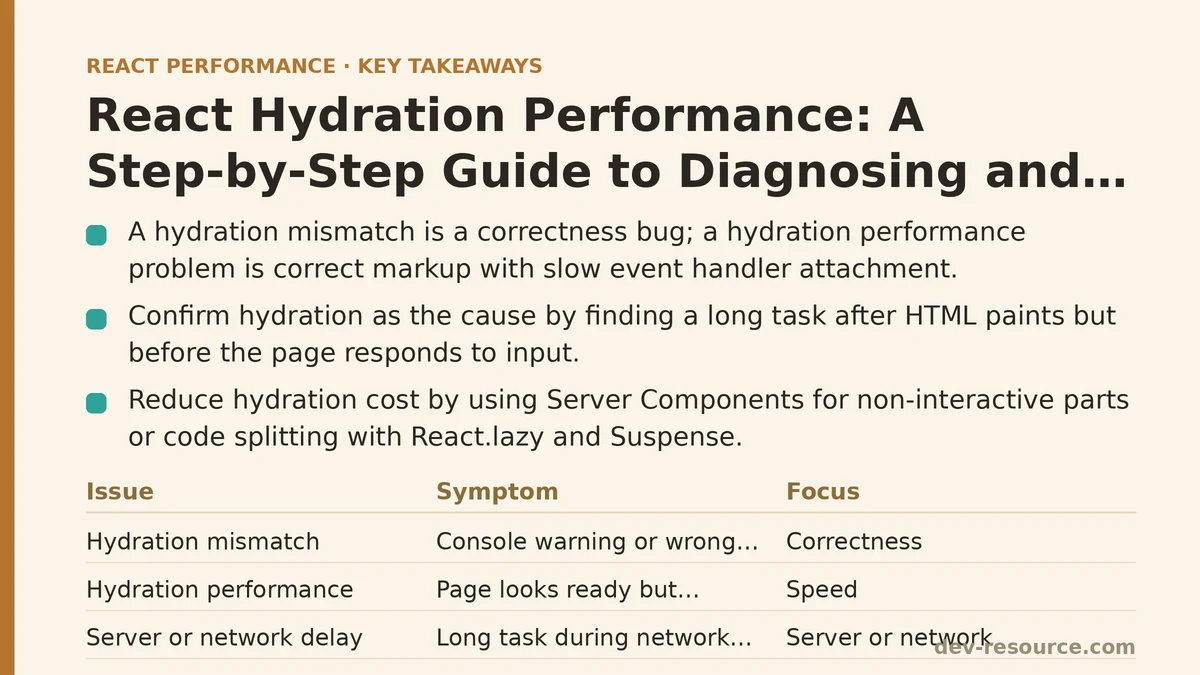
A hydration mismatch and a hydration performance problem are not the same thing, and treating them as interchangeable is how teams end up “fixing” the wrong issue for weeks. A mismatch is a correctness bug — the server-rendered markup doesn’t match what React expects to render on the client, and you get a console warning or a visible flash of wrong content. A hydration performance problem is different: the markup is correct, but attaching React’s event handlers and internal state to that markup takes long enough that the page looks ready before it actually responds to input. This guide is about the second problem, and the steps below assume you’ve already ruled out the first.
Step 1: Confirm You Have a Hydration Performance Problem, Not Something Else
Before changing any code, separate hydration from the two things it commonly gets blamed for: slow server rendering and slow data fetching. Open the Performance tab in Chrome DevTools, record a page load, and look for a long task that starts right after the HTML has painted but before the page responds to a click or tap. If that gap between “visually complete” and “interactive” is where the time is going, hydration is a reasonable suspect.
React’s Profiler and the browser’s own Long Tasks API both help confirm this. A long task landing squarely in the window between DOMContentLoaded and your first interaction handler firing, with no network requests in flight during that window, is a strong signal that the cost is client-side JavaScript execution — hydration’s main line item — rather than a server or network delay.
Step 2: Measure How Much JavaScript Is Being Hydrated
Hydration cost scales with the amount of interactive markup React has to reconcile on page load. Open your production bundle analyzer — next-bundle-analyzer if you’re on Next.js, or rollup-plugin-visualizer for a Vite setup — and look at what’s shipping to the client for the route in question. It’s common to find that a page rendering mostly static content is still shipping the full component tree’s client-side code, including components that never receive an interaction.
A useful gut check: if you disabled JavaScript entirely, how much of the page would still function as intended? Anything that would look and behave identically without React attached to it is a candidate for removal from the hydration path entirely, which is the target of the next step.
Step 3: Reduce What Actually Needs to Hydrate
The most direct fix for hydration performance is hydrating less. If you’re on a framework with React Server Components — Next.js’s App Router being the most common example — components that don’t need interactivity can be left as server components, which means they render to HTML and never ship their component logic to the client at all.
// This stays a server component — no hydration cost
function ArticleBody({ content }) {
  return <div className="prose">{content}</div>;
}

// Only this needs to be a client component
'use client';
function LikeButton({ articleId }) {
  const [liked, setLiked] = useState(false);
  return <button onClick={() => setLiked(!liked)}>{liked ? 'Liked' : 'Like'}</button>;
}
If you’re on an older architecture without Server Components, the closest equivalent is aggressive code splitting with React.lazy and Suspense, isolating interactive widgets so they load and hydrate independently of the surrounding static content rather than as one monolithic bundle.
const LikeButton = lazy(() => import('./LikeButton'));

function ArticleBody({ content }) {
  return (
    <div className="prose">
      {content}
      <Suspense fallback={null}>
        <LikeButton articleId={content.id} />
      </Suspense>
    </div>
  );
}
Step 4: Prioritize What Hydrates First
Not every interactive component on a page needs to be ready at the same moment. A comment box below the fold can hydrate a beat later than the navigation menu without anyone noticing. This is where selective and progressive hydration strategies pay off — instead of hydrating the entire tree in one synchronous pass, you hydrate what’s visible and interactive first, then let the rest catch up.
React’s built-in streaming SSR, paired with Suspense boundaries around lower-priority sections, handles a version of this automatically: content wrapped in Suspense streams in and hydrates as its chunk arrives, rather than blocking the whole page on the slowest component.
function Page() {
  return (
    <>
      <Header />
      <MainContent />
      <Suspense fallback={<CommentsSkeleton />}>
        <Comments />
      </Suspense>
    </>
  );
}
The effect on measured performance is usually visible in Time to Interactive for the elements users reach for first — navigation, primary buttons — even before the full page has finished hydrating in the background.
Step 5: Check for Expensive Work Happening During Hydration Itself
Sometimes the bottleneck isn’t the amount of markup but what a component does the instant it mounts. A useEffect that runs a heavy computation, parses a large JSON payload, or synchronously touches localStorage for every one of fifty list items will add directly to the hydration window, even if the component tree itself is small.
Profiling with React DevTools Profiler, specifically looking at the “mount” phase durations for components rendered during initial load, tends to surface these quickly. A single component taking 40ms to mount because of an unmemoized calculation buried in its body is easy to miss when scanning code but obvious once the Profiler flags it.
// Runs on every hydration, recalculates unnecessarily
function ProductList({ items }) {
  const sorted = items.sort((a, b) => a.price - b.price);
  return sorted.map(item => <ProductCard key={item.id} {...item} />);
}
Moving that sort into a useMemo, or better, doing it server-side before the data ever reaches the component, removes it from the hydration-time cost entirely.
Step 6: Verify Mismatch Warnings Aren’t Silently Doubling the Work
This step loops back to the distinction made at the start. A hydration mismatch doesn’t just produce a console warning — when React detects one, it discards the mismatched server-rendered content and re-renders that subtree from scratch on the client. That’s a full render happening on top of whatever hydration work was already planned, and it’s easy to mistake the resulting slowness for a general hydration performance issue rather than a specific correctness bug with a performance side effect.
Common sources: Date formatting or Math.random() calls that produce different output on server and client, browser-only APIs referenced during render instead of inside useEffect, and conditional rendering based on typeof window. Fixing these removes both the warning and the extra render work it triggers.
Step 7: Re-measure Under the Same Conditions
Once changes are in place, repeat Step 1’s measurement exactly — same device profile, same network throttling, same page. Comparing a throttled mobile trace against an earlier unthrottled one will make any fix look more dramatic than it was, and comparing against a different route entirely tells you nothing useful.
Track at least Time to Interactive and Total Blocking Time before and after each change, rather than making all the changes above at once and measuring a single before-and-after pair. Isolating which step produced which gain makes it much easier to know where to focus on the next page that has this problem.
| Symptom | Likely Cause | Step to Revisit |
|---|---|---|
| Console warning about mismatched content | Hydration mismatch, not a performance issue | Step 6 |
| Long task right after paint, page unresponsive | Too much JS hydrating at once | Steps 2–3 |
| Interactive elements delayed but page looks static | No prioritization of critical UI | Step 4 |
| Slow mount despite small component tree | Expensive work inside render or effects | Step 5 |
If you’re staring at a slow-feeling page right now, start with Step 1. It costs nothing to confirm hydration is the actual bottleneck before spending an afternoon restructuring components that weren’t the problem in the first place.
Related guides: How to Cut a React App’s Image Load Time: A Practical Guide, Improving Largest Contentful Paint (LCP) in React Apps: A Beginner vs Advanced Guide, and Troubleshooting React Hydration Mismatch Errors in Next.js.
🔗 Recommended Reading
- React Render Props Performance: A Beginner Tutorial
- React Performance Mistakes in Fintech Dashboards and How to Fix Them
- Lazy Loading Images and Components in React: A Step-by-Step Tutorial
- React Memoization: When and How to Use memo, useMemo, and useCallback
- Next.js App Router Performance Optimization for Beginners: A Step-by-Step Guide