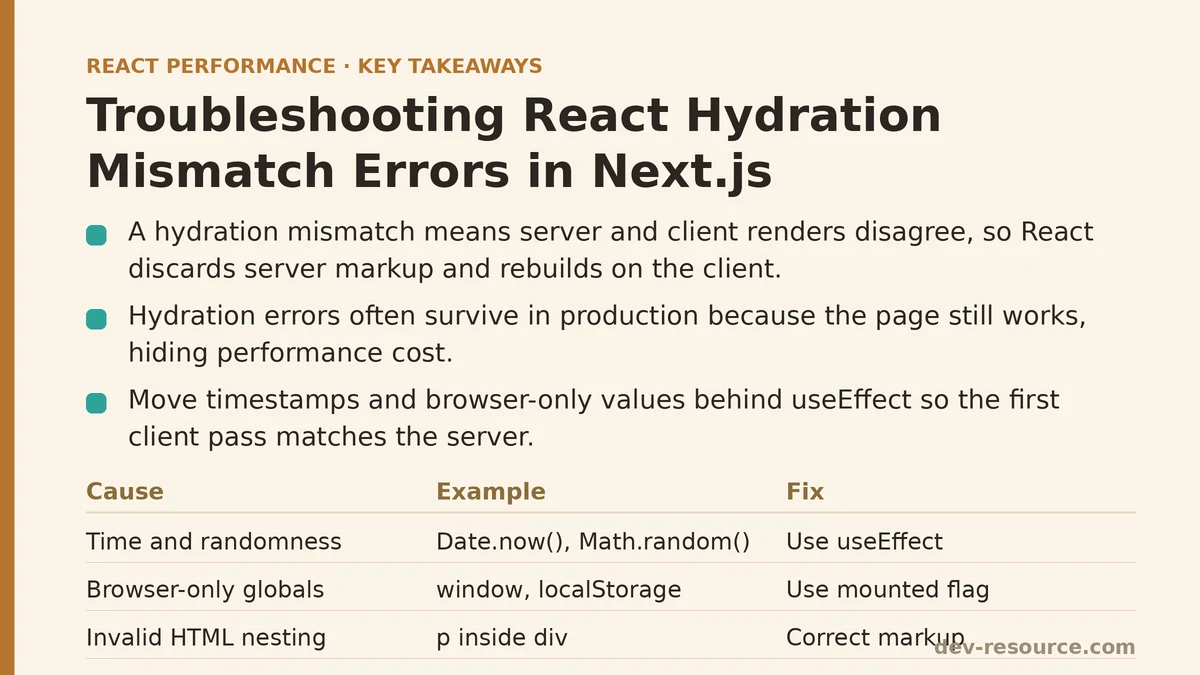
A hydration mismatch and a render error are not the same failure. A render error means the component threw and the tree failed to produce output at all. A hydration mismatch means the server produced valid HTML, the browser produced valid HTML, and the two versions disagree — so React discards the server markup and rebuilds the tree on the client. The page usually still works, which is exactly why these errors tend to survive in production for weeks before anyone notices the performance cost.
Beginner-Level Understanding: What Hydration Is Comparing
In a Next.js app using server rendering, the server runs your components and emits static HTML. The browser paints that HTML immediately, then downloads the JavaScript bundle and runs the same components again in a process called hydration. React walks the client tree alongside the existing DOM and tries to attach event handlers and state to nodes that already exist.
Hydration only succeeds when the client render produces the exact same markup as the server render. When it doesn’t, React logs a warning that names the mismatched element and a diff of the two outputs. The most common beginner-level causes fall into a small set of categories:
- Time and randomness.
Date.now(),Math.random(), andnew Date()produce different values on the server and the client. - Browser-only globals.
window,localStorage, andnavigatordon’t exist during server rendering, so code that reads them produces different output in each environment. - Locale and formatting drift.
toLocaleDateString()andIntl.NumberFormatcan resolve to different locales or time zones depending on where each render runs. - Invalid HTML nesting. Browsers silently correct markup like
<p><div></div></p>, so the browser’s DOM no longer matches what React thinks it rendered.
A minimal reproduction of the first category looks like this:
export default function Footer() {
  return (
    <footer>
      <p>Rendered at {new Date().toLocaleTimeString()}</p>
    </footer>
  );
}
The server stamps one timestamp; by the time the client hydrates, a second or more has passed. The strings differ, React reports a mismatch, and the whole footer subtree re-renders on the client. The fix is not to suppress the warning — it’s to move the timestamp behind a useEffect, which only runs on the client after the initial HTML has already been committed:
import { useState, useEffect } from 'react';

export default function Footer() {
  const [time, setTime] = useState(null);

  useEffect(() => {
    setTime(new Date().toLocaleTimeString());
  }, []);

  return (
    <footer>
      <p>Rendered at {time ?? '—'}</p>
    </footer>
  );
}
The server renders the placeholder; the client renders the same placeholder first, then updates it after hydration completes. No mismatch, because the first client pass matches the server pass.
Advanced-Level Understanding: The Failures That Hide
Once you’ve eliminated the obvious causes, hydration errors get harder to trace. Three patterns account for most of the stubborn cases.
Conditional rendering driven by environment checks
The habit of writing typeof window !== 'undefined' inline inside JSX looks harmless but produces two different trees:
export default function Widget() {
  const isClient = typeof window !== 'undefined';
  return <div>{isClient ? <LiveCounter /> : <Skeleton />}</div>;
}
The server always renders <Skeleton />; the client’s first pass always renders <LiveCounter />. React sees two different elements in the same slot and throws away the server HTML. The correct pattern is a mounted flag driven by useEffect, so both environments render the same thing on the first pass.
Third-party libraries that touch document at import time
Analytics widgets, chat embeds, and map libraries often assume a browser environment. If a component wrapping one of these is imported into a server-rendered tree, the import itself can crash server rendering — or, worse, succeed on the server by returning an empty shell and then render fully on the client, producing a mismatch. The two reliable fixes are dynamic() with { ssr: false }, or a client-only boundary using useEffect to mount the widget after hydration.
Invalid HTML caused by component abstraction
Component libraries frequently produce markup like this:
function Card({ title }) {
  return <p className="card-title">{title}</p>;
}

function Layout() {
  return (
    <p>
      <Card title="Hello" />
    </p>
  );
}
The <p> wrapping <p> is invalid. The browser’s HTML parser closes the outer paragraph early and re-parents the inner one, so the DOM no longer matches what React rendered on the server. React reports a mismatch, but the diff in the console points at the outer <p> and looks unrelated to the actual cause. This class of bug is worth suspecting whenever the mismatch diff shows element nesting that doesn’t match your source.
A Comparison Framework: How to Decide Which Fix Applies
| Symptom | Likely cause | Correct fix | When NOT to use it |
|---|---|---|---|
| Mismatch appears on every load, in the same place | Time, randomness, or locale in rendered output | Move the value into useEffect and render a placeholder server-side |
Don’t reach for suppressHydrationWarning; it silences the symptom without fixing the tree |
| Mismatch appears only for some users | localStorage, cookies, or user-agent branching |
Gate the branch behind a mounted flag | Don’t push the branch into a try/catch — the mismatch remains |
| Mismatch only after adding a third-party widget | Library touches document at import |
dynamic(() => import('./Widget'), { ssr: false }) |
Don’t apply ssr: false to your own components that don’t need it — it bloats the client bundle |
| Mismatch diff shows unexpected element nesting | Invalid HTML from component composition | Fix the nesting (<section> instead of <p> for block content) |
Don’t trust the reported element — the actual invalid parent is often documented in the browser’s DOM after parsing |
| Text content is off by a whitespace or punctuation character | String concatenation near JSX boundaries | Rewrite as sibling text nodes or template literals | Don’t add {' '} blindly — verify the exact byte difference first |
Verifying the Fix
The console warning disappearing is a good sign, but it’s not proof the hydration is clean. Two verification steps are worth adopting:
- Inspect the DOM after the first paint. With JavaScript disabled in the browser’s settings, load the page. If the initial HTML is missing content that appears once scripts run, the server render is incomplete and you’ve merely hidden the mismatch, not fixed it.
- Watch the React DevTools Profiler during the first commit. A clean hydration produces no client-side render work for server components. If the Profiler shows a full re-render of a subtree right after load, React discarded the server HTML for that subtree and is rebuilding it — the same underlying problem the console warning was pointing to.
A next build && next start cycle (rather than next dev) is the only reliable environment for this check. Development mode disables some optimizations and can mask or exaggerate hydration behavior, so a mismatch that appears only in production is a real class of bug worth knowing about.
Where suppressHydrationWarning Belongs — and Where It Doesn’t
suppressHydrationWarning silences the warning for a single element and its immediate text content. It does not fix the underlying mismatch; React still cannot reuse the server markup for that node, and the client still pays the render cost. It is appropriate for cases where the server and client are legitimately allowed to disagree and the disagreement is cosmetic — a <time> element whose rendered text depends on the visitor’s clock, for example. It is not appropriate as a general troubleshooting shortcut, because it hides the diff you need in order to find the actual cause. When in doubt, treat the warning as information rather than noise.
If a mismatch is coming from a component you don’t control and can’t rewrite — a vendor date picker, for instance — the honest options are: render it client-side only with dynamic(..., { ssr: false }), wrap it in a mounted-guard boundary, or accept the suppressHydrationWarning on the wrapping element and confirm via profiling that the impact is contained to that subtree.
What to Check First, In Order
Start with the console diff. It names the exact element and the differing value — that alone resolves most beginner-level cases in under a minute. If the diff points at nesting rather than content, suspect invalid HTML before anything else. If the mismatch only appears for some users or only in production, look for environment-dependent branches (localStorage, cookies, navigator, Date). Only after those three passes should you consider third-party libraries and dynamic imports, because those fixes cost bundle size and are easy to apply where they aren’t needed.
Have a specific hydration error you’re working through? Paste the console diff and the surrounding component code, and I can help you trace which of the categories above applies.
Related guides: React Hydration Performance: A Step-by-Step Guide to Diagnosing and Fixing Slow Hydration, How to Cut a React App’s Image Load Time: A Practical Guide, and Improving Largest Contentful Paint (LCP) in React Apps: A Beginner vs Advanced Guide.
🔗 Recommended Reading
- React Performance Mistakes in Fintech Dashboards and How to Fix Them
- Lazy Loading Images and Components in React: A Step-by-Step Tutorial
- React Memoization: When and How to Use memo, useMemo, and useCallback
- Next.js App Router Performance Optimization for Beginners: A Step-by-Step Guide
- Measuring and Fixing React Re-render Performance: A Step-by-Step Walkthrough