Say you are trying to fix a product listing page where a dozen images all fire their network requests the moment the route renders. On a throttled connection, the hero and the first row of cards end up queued behind images the visitor cannot even see yet. The fix is lazy loading — but there are several ways to apply it in React, each with its own failure modes. This guide is organized as a troubleshooting checklist: symptom first, then the underlying cause, then the concrete fix.
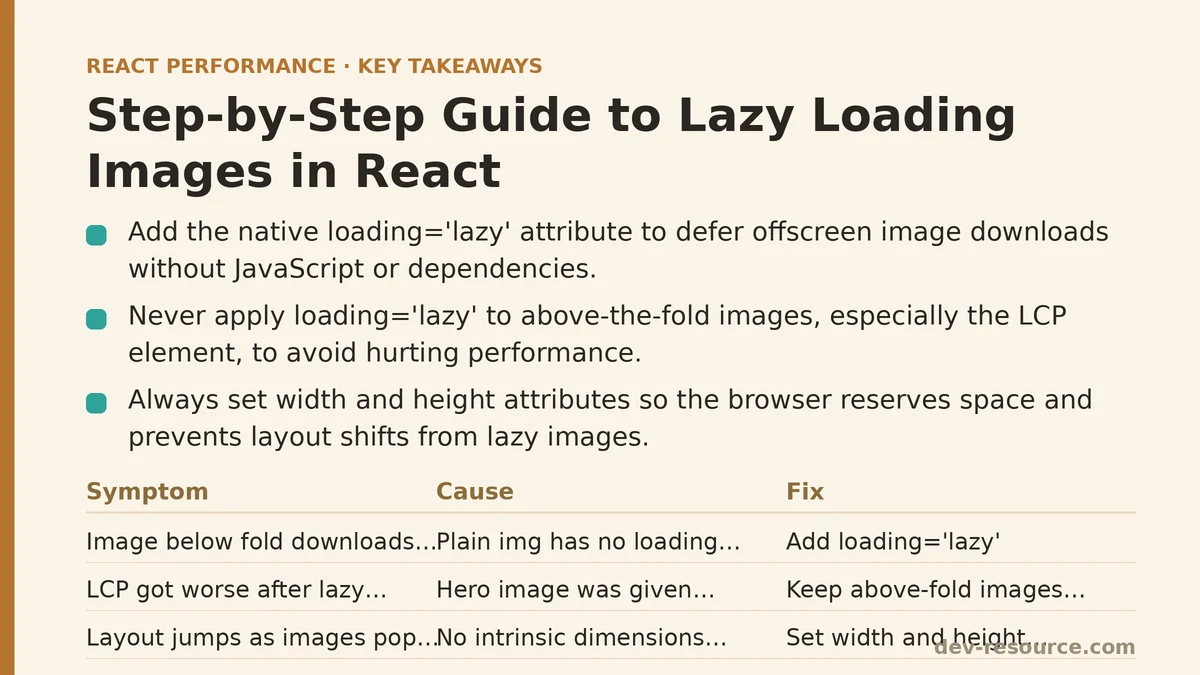
Symptom: An Image Below the Fold Downloads Immediately
Cause. A plain <img> tag has no loading strategy attached. The browser discovers the src, treats it as a normal resource, and fetches it during the initial load regardless of where it sits in the document.
Fix. Add the native loading="lazy" attribute. The browser defers the download until the image approaches the viewport, using its own internal heuristics for the distance threshold. No JavaScript, no dependency, no wrapper component required.
function ProductCard({ product }) {
  return (
    <article className="card">
      <img
        src={product.imageUrl}
        alt={product.name}
        loading="lazy"
        width="400"
        height="300"
      />
      <h3>{product.name}</h3>
    </article>
  );
}
That is the entire implementation for most cases. Browser support for loading="lazy" is broad enough that a polyfill is rarely necessary in 2026, and browsers that ignore the attribute simply fall back to eager loading — a graceful degradation rather than a broken image.
Symptom: LCP Got Worse After Adding Lazy Loading
Cause. The Largest Contentful Paint element — usually the hero image or the first featured card — was given loading="lazy" along with everything else. You told the browser to defer the exact resource the performance metric is watching.
Fix. Never apply loading="lazy" to anything above the fold. Audit your component tree and make sure every image that renders in the initial viewport is either left with no loading attribute or explicitly marked:
<img src={heroImage} alt="Featured product" loading="eager" fetchPriority="high" />
The fetchPriority="high" attribute is a separate signal that raises the priority of that request relative to other resources. Pairing it with an explicit loading="eager" makes the intent unambiguous to anyone reading the code later. A practical rule: anything within the first viewport height should be eager, and everything else should be lazy. If you are unsure where the fold sits on mobile, the safest default is eager for the first one or two images and lazy for the rest.
Symptom: Layout Jumps as Images Pop In
Cause. The <img> element has no intrinsic dimensions declared, so the browser reserves zero space for it until the file finishes downloading. When the image arrives, the element expands and shoves everything below it downward — a layout shift that counts against Cumulative Layout Shift (CLS).
Fix. Always set width and height attributes equal to the image’s intrinsic pixel dimensions, then let CSS control the rendered size:
.card img {
  width: 100%;
  height: auto;
}
The browser uses the ratio between the declared width and height to reserve space proportionally before the image loads. This works whether the image is lazy or eager, but it matters more with lazy loading because the download is deliberately delayed — meaning the un-reserved space sits empty for longer and the eventual shift is more visible to the person scrolling.
Symptom: You Need a Fade-In or Placeholder Effect
Cause. Native loading="lazy" controls when the request fires, but it gives you no hook into the load event for styling. There is no attribute that says “run this callback when the image is ready.”
Fix. Combine native lazy loading with React’s onLoad handler, which fires once the image has fully decoded. Drive a small piece of local state to toggle an opacity transition:
import { useState } from 'react';

function LazyImage({ src, alt, width, height }) {
  const [loaded, setLoaded] = useState(false);

  return (
    <img
      src={src}
      alt={alt}
      width={width}
      height={height}
      loading="lazy"
      style={{
        opacity: loaded ? 1 : 0,
        transition: 'opacity 0.3s ease-in',
      }}
      onLoad={() => setLoaded(true)}
    />
  );
}
One caveat worth stating plainly: this adds a render cycle per image as the loaded flag flips. For a gallery of fifty thumbnails, that is fifty state updates spread across the scroll. React batches state updates within event handlers, so the cost is usually negligible, but if you are rendering an extremely long list, consider whether the visual polish justifies the extra reconciliation work. In many cases a solid background color on the container achieves a similar perceived effect with zero JavaScript.
Symptom: You Need Control Over the Trigger Distance
Cause. The browser decides how far ahead of the viewport to start loading a lazy image, and that threshold is not configurable via HTML. If you want images to start loading when they are 500px away, or want a specific loading animation tied to scroll position, the native attribute will not give you that control.
Fix. Reach for the Intersection Observer API directly. It gives you an explicit rootMargin value that controls how far in advance the observer fires.
import { useEffect, useRef, useState } from 'react';

function LazyImage({ src, alt, width, height }) {
  const [inView, setInView] = useState(false);
  const ref = useRef(null);

  useEffect(() => {
    const observer = new IntersectionObserver(
      ([entry]) => {
        if (entry.isIntersecting) {
          setInView(true);
          observer.disconnect();
        }
      },
      { rootMargin: '200px 0px' }
    );

    if (ref.current) observer.observe(ref.current);
    return () => observer.disconnect();
  }, []);

  return (
    <img
      ref={ref}
      src={inView ? src : undefined}
      data-src={src}
      alt={alt}
      width={width}
      height={height}
    />
  );
}
Walking through the implementation path:
- Setup. Create a ref on the image element and a boolean state flag that tracks whether it has entered the trigger zone.
- Change. In a
useEffect, instantiate anIntersectionObserverwith arootMarginthat extends the trigger zone beyond the actual viewport. Pass the ref toobserver.observe(). - Verify. Scroll the page slowly and watch the Network panel in DevTools. Images should begin their request roughly 200px before they become visible, and once
isIntersectingflips true, the observer disconnects so the callback stops firing.
The observer.disconnect() call inside the callback is not optional. Without it, the observer keeps watching an element that has already been revealed, which wastes work and in some component re-mount scenarios leaks a reference.
Do not reach for this approach if native lazy loading meets your needs. The custom implementation is more code to maintain, and the observer setup runs on every component mount. It earns its place only when you need the rootMargin control or a specific trigger-based animation.
Symptom: The Image Starts Loading Too Early or Too Late on Slow Connections
Cause. Native lazy loading’s threshold is tuned by the browser, and it does not adapt to network speed on its own. On a fast connection the deferral feels invisible; on a slow one, an image may begin loading so late that the person has already scrolled to empty space where the image should be.
Fix. Combine loading="lazy" with a low-quality placeholder or a blurred preview that occupies the reserved space. The placeholder loads eagerly and is tiny; the full-resolution version swaps in when the real download completes. This does not change the load trigger, but it removes the perceived delay because something is always visible in the slot.
import { useState } from 'react';

function ProgressiveImage({ placeholder, src, alt, width, height }) {
  const [loaded, setLoaded] = useState(false);

  return (
    <div style={{ position: 'relative', width, height }}>
      <img src={placeholder} alt="" width={width} height={height} aria-hidden="true" />
      <img
        src={src}
        alt={alt}
        width={width}
        height={height}
        loading="lazy"
        decoding="async"
        style={{
          position: 'absolute',
          top: 0,
          left: 0,
          opacity: loaded ? 1 : 0,
          transition: 'opacity 0.4s',
        }}
        onLoad={() => setLoaded(true)}
      />
    </div>
  );
}
The decoding="async" attribute tells the browser it can decode the image off the main thread rather than blocking rendering. It is a small hint, but on image-heavy pages it can measurably reduce main-thread contention during scroll.
Symptom: Lazy Loading a Long List Still Feels Sluggish
Cause. Lazy loading images solves the network problem but not the DOM problem. A product grid with three hundred cards still renders three hundred <div> elements, three hundred <img> tags, and all the associated event listeners and style computations, whether or not the images have loaded. React still reconciles the whole tree on every parent state change.
Fix. This is a different problem with a different tool. If the list is very long, virtualization — rendering only the rows currently in the viewport and recycling the DOM nodes as you scroll — solves the DOM cost that lazy loading leaves untouched. Libraries such as react-window or react-virtuoso handle this. The two techniques compose: virtualize the list so only visible rows exist, and lazy-load the images within those rows so nothing fetches until it is nearly on screen.
Do not virtualize prematurely. Virtualization introduces its own constraints — fixed or measured row heights, more complex scroll restoration, and accessibility considerations that are harder to get right. For lists under a few hundred items, the browser handles the DOM cost fine and lazy loading alone is sufficient.
Symptom: You Deployed the Change and Saw No Difference
Cause. The most common reason a lazy loading change produces no visible improvement is that the images were not the bottleneck in the first place. If the initial bundle is several megabytes of JavaScript, or the data fetch resolves the image URLs only after a slow API round trip, deferring the image downloads does not help — they were never the thing blocking the render.
Fix. Measure before and after with the tools that isolate the factors. Chrome DevTools’ Coverage panel shows unused JavaScript. The Performance panel’s filmstrip view shows exactly when each image paints. Lighthouse’s diagnostics list the specific audit items dragging the score down. If your LCP is driven by a JavaScript execution or a font load rather than an image, no amount of lazy loading will move it.
A quick way to check the current behavior: open the Network panel, filter to Img, disable caching, and reload. If the below-fold images all appear at the top of the waterfall before the page becomes interactive, lazy loading is not yet applied where it needs to be. If they only appear as you scroll, it is working.
Quick Reference
| Symptom | Likely Cause | Fix |
|---|---|---|
| Below-fold images fetch on page load | No loading strategy | Add loading="lazy" |
| LCP worsened after applying lazy loading | Hero image was lazily loaded | Set loading="eager" and fetchPriority="high" on the LCP image |
| Layout shifts as images appear | No intrinsic dimensions declared | Add width and height, control size with CSS |
| No fade-in or load callback | Native attribute has no load hook | Combine with onLoad and a state flag, or use a placeholder |
| Need a custom trigger distance | Browser controls the native threshold | Use IntersectionObserver with rootMargin |
| Long list still sluggish after lazy loading | DOM size, not network | Virtualize with react-window or similar |
| No measurable change after deploying | Images were not the bottleneck | Profile with Coverage and Performance panels before assuming |
Work through the list in order. In most React applications, the first two rows of that table account for nearly all of the network savings, and they require nothing more than two attributes on the right images. The Intersection Observer path and the placeholder technique are for cases where the native behavior is not flexible enough — reach for them deliberately, not by default.
Related guides: Intersection Observer Lazy Loading in React: A Troubleshooting Checklist, Lazy Loading Third-Party Scripts in React Apps: 5 Techniques Ranked by Impact, and Web Vitals Optimization for React SPAs: A Step-by-Step Guide.
🔗 Recommended Reading
- React Performance Mistakes in Fintech Dashboards and How to Fix Them
- Lazy Loading Images and Components in React: A Step-by-Step Tutorial
- React Memoization: When and How to Use memo, useMemo, and useCallback
- Next.js App Router Performance Optimization for Beginners: A Step-by-Step Guide
- Measuring and Fixing React Re-render Performance: A Step-by-Step Walkthrough