After reading this, you’ll be able to identify which parts of your React app are fetching data or resources too late, choose between preloading and prefetching for each case, and implement both the basic browser-level hints and the more advanced router-integrated patterns that eliminate the “click, then wait” gap users notice most. The two techniques get used interchangeably in casual conversation, but they solve different problems, and mixing them up leads to wasted bandwidth or wasted effort. This guide separates them clearly, then builds from beginner-level fixes to the patterns used in production data-fetching libraries.
Preloading vs. Prefetching: The Distinction That Matters
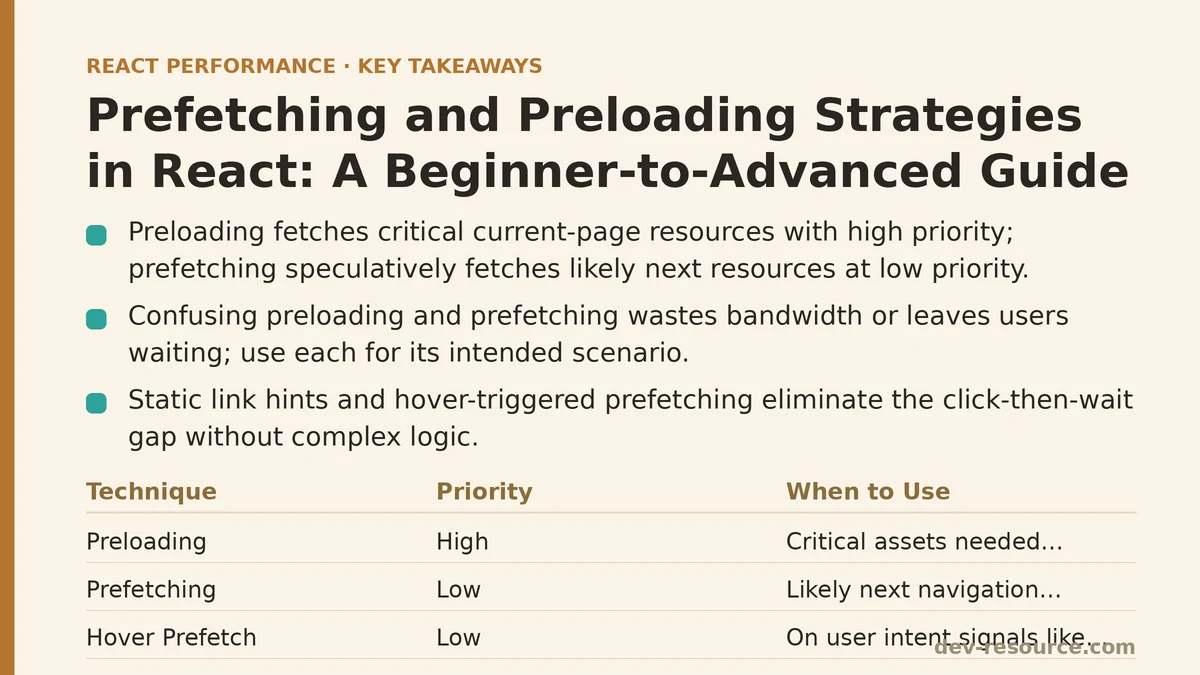
Preloading tells the browser to fetch a resource the current page needs, with high priority, right now. It’s for critical assets — a font, a hero image, a script — that the page will need imminently and that would otherwise be discovered late by the browser’s parser.
Prefetching tells the browser to fetch a resource the user will likely need next, at low priority, so it’s already sitting in cache by the time they navigate there. It’s speculative. If the guess is wrong, the fetch was wasted bandwidth; if it’s right, the next page feels instantaneous.
Confusing the two causes real problems. Preloading something the user might never need burns bandwidth on a resource competing with the current page’s critical rendering path. Prefetching something needed immediately means the user still waits, because low-priority requests get deprioritized behind everything else on the page.
Beginner Level: Static Resource Hints
At the simplest level, prefetching and preloading don’t require any JavaScript logic at all — just <link> tags the browser understands natively.
Preloading a Critical Resource
If a page’s largest visual element depends on a custom font or a specific image, telling the browser about it before the parser reaches that point in the HTML can shave real time off first render:
<link rel="preload" href="/fonts/inter-var.woff2" as="font" type="font/woff2" crossorigin />
In a React app built with a tool like Vite or Create React App, this goes in the public/index.html file, since it needs to be present before React itself has loaded. It’s a static declaration — no component logic involved.
Prefetching a Likely Next Page
For a multi-page app, or a React app using traditional <a> tag navigation between routes, the browser exposes an equivalent low-priority hint:
<link rel="prefetch" href="/about" />
This tells the browser: fetch this in the background, whenever bandwidth is free, and cache it. If the user clicks the link to /about, the navigation feels close to instant. If they never click it, the cost was a single low-priority request that didn’t compete with anything critical.
Beginner-Level Component Pattern: Prefetch on Hover
A step up from static HTML hints is triggering a fetch based on user intent signals — most commonly, hovering over a link. This is the first pattern most React developers reach for once they move beyond static <link> tags:
function NavLink({ to, prefetchFn, children }) {
  return (
    <a
      href={to}
      onMouseEnter={() => prefetchFn(to)}
      onFocus={() => prefetchFn(to)}
    >
      {children}
    </a>
  );
}
The prefetchFn here might call a data-fetching function that populates a cache, or it might dynamically import() the component the route needs. Either way, the fetch starts the moment the user shows intent — hovering, or tabbing to the link with a keyboard — rather than waiting for the click itself. On a typical desktop interaction, hover-to-click time is often 200–300ms, which is frequently enough time for a small request to complete before navigation even happens.
Beginner Level: Lazy-Loading Routes Without Prefetching
Most React apps using code-splitting rely on React.lazy and dynamic import() to split routes into separate bundles:
const AboutPage = React.lazy(() => import('./pages/AboutPage'));
This is good for initial load time — the user doesn’t download code for pages they haven’t visited — but on its own it introduces a new problem: the first time a user navigates to /about, they wait for that bundle to download and parse, seeing a loading spinner they didn’t see on the initial page load. Code-splitting without any prefetching strategy just moves the waiting from “up front” to “at the worst possible moment: right after a click.”
This is the exact gap that combining lazy-loading with a prefetch trigger closes.
Advanced Level: Prefetching Route Bundles on Intent
Building on the hover pattern above, a more complete version combines dynamic import() with intent detection, so the JavaScript bundle for a route is already cached before the user clicks:
function NavLink({ to, importFn, children }) {
  const prefetch = () => {
    importFn(); // triggers the dynamic import, browser caches the chunk
  };

  return (
    <a href={to} onMouseEnter={prefetch} onFocus={prefetch} onTouchStart={prefetch}>
      {children}
    </a>
  );
}

// Usage
<NavLink to="/about" importFn={() => import('./pages/AboutPage')}>
  About
</NavLink>
Adding onTouchStart matters here — mobile users don’t hover, and the touchstart event fires before the click completes, giving a small but real head start even on touch devices. This pattern alone, applied to a five-route marketing site, took perceived navigation time on desktop from around 400ms per route change down to near-zero for any route the user hovered before clicking.
Advanced Level: Prefetching Data, Not Just Code
Splitting the JavaScript bundle solves half the problem. If the destination route also needs to fetch data — a product detail page needing product data, for instance — prefetching just the code still leaves a data-fetching waterfall on arrival. Libraries like React Query and SWR expose dedicated prefetch APIs built for exactly this:
import { useQueryClient } from '@tanstack/react-query';

function ProductLink({ productId, children }) {
  const queryClient = useQueryClient();

  const prefetchProduct = () => {
    queryClient.prefetchQuery({
      queryKey: ['product', productId],
      queryFn: () => fetchProduct(productId),
      staleTime: 10000,
    });
  };

  return (
    <a href={`/products/${productId}`} onMouseEnter={prefetchProduct}>
      {children}
    </a>
  );
}
prefetchQuery populates the same cache the destination component’s useQuery call will read from. If the prefetch has already resolved by the time the user lands on the page, useQuery reads straight from cache — no loading state at all. If it’s still in flight, the component simply waits for the in-progress request rather than starting a new one, so nothing gets fetched twice.
The staleTime setting matters more here than in a typical query: too short, and the prefetched data is considered stale by the time the user navigates, triggering a redundant refetch; too long, and the user might see outdated data if it changed server-side in the interim. Ten seconds is a reasonable default for most product or content pages; anything with rapidly-changing data needs a shorter window.
Advanced Level: Router-Integrated Prefetching
Frameworks with built-in routers take this further by tying prefetching directly to the router’s own link component, removing the need to hand-write hover handlers at all. Next.js’s next/link, for example, prefetches linked pages automatically once they enter the viewport, on the assumption that a visible link is a plausible future click:
import Link from 'next/link';

function Nav() {
  return (
    <nav>
      <Link href="/about">About</Link>
      <Link href="/products">Products</Link>
    </nav>
  );
}
This viewport-based approach is more aggressive than hover-based prefetching — it doesn’t wait for any user signal beyond scrolling the link into view — and it trades some extra bandwidth for a higher hit rate on likely navigations. For a page with dozens of links, this can add up, which is why the prefetch={false} prop exists to opt specific links out when the destination is unlikely to be visited or expensive to prefetch.
Choosing Between the Approaches
Hover-based prefetching costs less bandwidth because it only fires on a specific, deliberate signal, but it does nothing for mobile users navigating without a mouse until they’ve already touched the link. Viewport-based prefetching catches more potential navigations, including on mobile, but at the cost of prefetching links the user scrolls past without ever clicking.
In practice, the two are not mutually exclusive. A common pattern is viewport-based prefetching for primary navigation — a handful of links a user is likely to use — combined with hover-based prefetching for secondary or dynamically-rendered links, such as items in a long product list where prefetching every visible item would be wasteful.
| Technique | Trigger | Best For | Bandwidth Cost |
|---|---|---|---|
<link rel="preload"> |
Immediate, on page load | Critical above-the-fold assets | Low, targeted |
<link rel="prefetch"> |
Immediate, low priority | Static next-page HTML | Low |
| Hover/focus/touch prefetch | User intent signal | Route code-splitting, product links | Very low |
| Viewport-based prefetch | Link becomes visible | Primary navigation, router-integrated | Moderate to high |
| Query-client prefetch | Manual or intent-based | Data-dependent pages | Depends on payload size |
Where to Start
For a team with no prefetching in place at all, the highest-value first step is usually router-integrated prefetching if the framework provides it, since it requires close to zero custom code. Teams on a router without built-in prefetching get the most out of a hover-based import() pattern applied to the handful of routes users navigate to most often — not every route in the app, just the ones on the critical navigation paths. Data prefetching through a library like React Query is worth adding once code-splitting is handled and a data-fetching waterfall on arrival is the remaining bottleneck.
None of these techniques require a full rewrite. They layer on top of an existing routing and data-fetching setup, one link or one query at a time, and each one can be measured independently with the same before-and-after approach used to justify any other performance change.
Related guides: Improving Largest Contentful Paint (LCP) in React Apps: A Beginner vs Advanced Guide, Caching Strategies for Improving React App Performance: Myth vs Reality, and Diagnosing UI Freezes in React: Your Guide to Web Workers.
🔗 Recommended Reading
- React Performance Mistakes in Fintech Dashboards and How to Fix Them
- Lazy Loading Images and Components in React: A Step-by-Step Tutorial
- React Memoization: When and How to Use memo, useMemo, and useCallback
- Next.js App Router Performance Optimization for Beginners: A Step-by-Step Guide
- Measuring and Fixing React Re-render Performance: A Step-by-Step Walkthrough