Say you are trying to speed up a dashboard that feels sluggish every time a user filters a table, and your gut tells you the giant table component must be the culprit. You wrap it in React.memo, ship the change, and… nothing. The interaction still lags. That’s because the real slowdown was coming from a small filter-summary component nobody suspected, quietly re-rendering on every keystroke while doing far more work than its size suggested.
Why Profiling Before Optimizing Matters
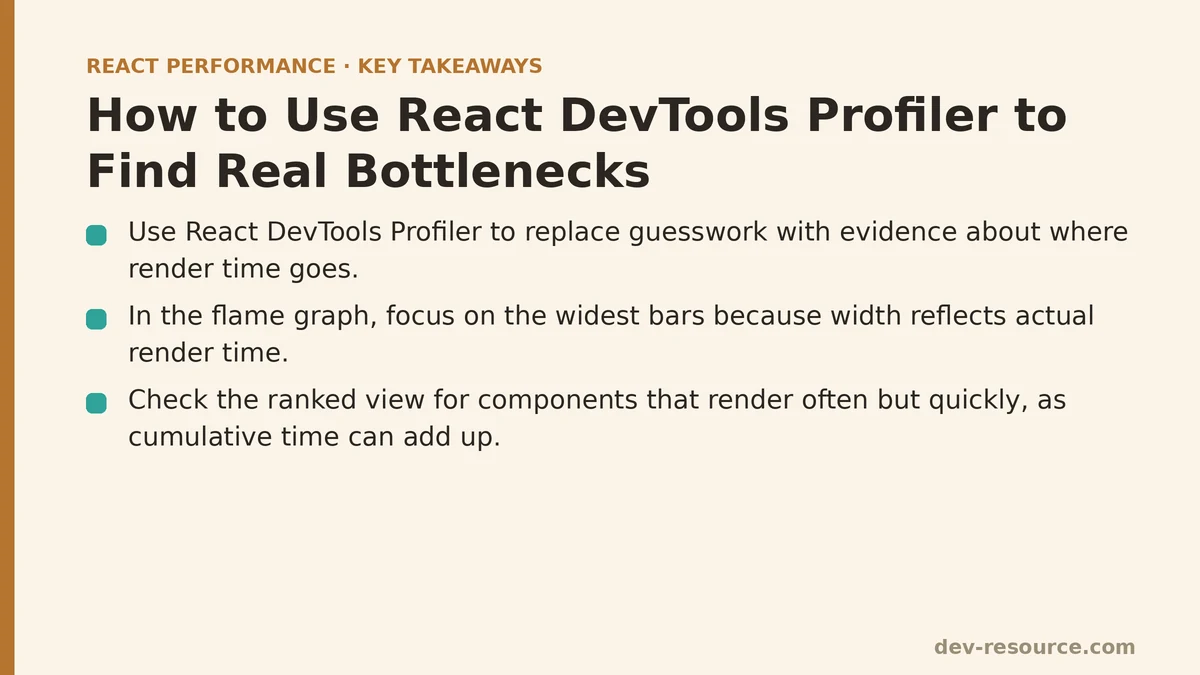
This ties into something we come back to often on this site: tools like React.memo, useMemo, and useCallback come with real cost. Applying them to a component that isn’t the actual source of slowness burns effort and adds long-term maintenance overhead without touching the problem you set out to fix. The React DevTools Profiler exists precisely to replace guesswork with hard evidence about where render time is going.
Setting Up the Profiler
The Profiler tab ships as part of the React Developer Tools extension for Chrome, Firefox, and Edge. Install it, open your browser’s dev tools on a page running React, and you’ll see two new tabs added by the extension: “Components” and “Profiler.”
Profiling a production build requires either a standard development build or a production build compiled with profiling support turned on — regular production builds strip out the metadata the Profiler depends on. In practice, for most day-to-day performance investigation, just running the app in development mode while you profile is the simplest path forward.
Recording a Profiling Session
Hit record in the Profiler tab, then go do the thing you suspect is slow — type into that search box, scroll the long list, click the button that fires a state update touching a dozen components. Stop recording once the interaction wraps up.
What you get back is a flame graph: every component that rendered during the session, laid out as bars whose width reflects render time. That width is the whole point — it lets you see which components consumed real time, instead of guessing based on which ones look like they’d be expensive.
Reading the Flame Graph Correctly
Width is the signal that matters most at first glance. Scan for the widest bars — those mark where render time is concentrated — rather than spreading your optimization attention evenly across everything on the theory that any of it might be the problem.
The Profiler also tracks how many times each component rendered during the session. A component that renders quickly each time but does so dozens of times can still rack up more total time than a single slow render elsewhere. That’s exactly what the “ranked” view is for: it sorts components by cumulative time, surfacing patterns the flame graph alone can obscure.
Identifying Why a Component Re-Rendered
Click a bar in the flame graph and, in recent versions of React DevTools, you’ll see why that component re-rendered on that particular pass — a prop change, a state change, or simply because its parent re-rendered. This is the question intuition tends to answer poorly on its own: did this component re-render because something it depends on changed, or is it re-rendering for no real reason while its relevant props stayed the same?
The distinction shapes what fix makes sense. A component re-rendering because its inputs genuinely changed calls for a different approach — usually cutting the cost of each render — than one re-rendering needlessly despite unchanged props, which is the classic signal that memoization (see our React.memo guide) is worth trying.
A Practical Diagnostic Workflow
Record a session during the exact interaction that feels slow. Profiling some unrelated interaction and hoping it happens to capture the problem wastes the exercise.
Look for the widest bars in the flame graph first. Start your investigation there instead of chasing the component that merely seems like the likely offender.
Check why each significant component re-rendered. Sort the necessary renders — where relevant data changed — from the unnecessary ones triggered by a parent re-render with stable props.
Match the fix to the diagnosis. Memoization for unnecessary re-renders with stable props; render-cost reduction (covered elsewhere on this site) for renders that are legitimately expensive but required.
Re-profile after making any change. Confirm the improvement with a fresh recording rather than trusting that a well-known pattern automatically did what it was supposed to.
Common Mistakes When Using the Profiler
Profiling a production build without profiling enabled, which leaves you with thin or missing data instead of a usable session.
Profiling the wrong interaction, capturing information that has nothing to do with the slowness users are actually experiencing.
Fixing the first wide bar you spot without checking the ranked view, and missing a component that costs more in total across many renders.
Skipping the re-profile step, and assuming a fix worked just because it’s the textbook recommendation rather than confirming it with before-and-after data.
A Quick Reference Workflow Summary
| Step | Purpose |
|---|---|
| Record during the actual slow interaction | Capture relevant performance data |
| Identify widest bars in flame graph | Find components consuming the most time |
| Check why each component re-rendered | Distinguish necessary vs unnecessary renders |
| Apply the appropriate matching fix | Target the diagnosed cause |
| Re-profile to verify | Confirm the improvement with real measurements |
What This Workflow Resolved in My Own Investigation
Profiling the interaction I’d already convinced myself was the problem turned up something I hadn’t expected: the component I assumed was the bottleneck rendered fast. A different, far less prominent component was quietly eating most of the cumulative time — not because any single render was expensive, but because it rendered constantly, with a moderate cost each time. Once I redirected effort there instead of toward my original suspect, the performance gain I’d been chasing finally showed up.
Are you experiencing a specific performance issue you are trying to diagnose? Describe what feels slow and I can help you think through how to set up a profiling session to identify the cause.
Related guides: Common Mistakes That Sabotage React Profiler Results, Measuring and Fixing React Re-render Performance: A Step-by-Step Walkthrough, and Profiling React Apps with the Chrome DevTools Performance Tab: A Step-by-Step Guide.
🔗 Recommended Reading
- React Performance Mistakes in Fintech Dashboards and How to Fix Them
- Lazy Loading Images and Components in React: A Step-by-Step Tutorial
- React Memoization: When and How to Use memo, useMemo, and useCallback
- Next.js App Router Performance Optimization for Beginners: A Step-by-Step Guide
- Measuring and Fixing React Re-render Performance: A Step-by-Step Walkthrough