A common misconception treats debouncing and throttling as interchangeable performance knobs — two names for roughly the same trick of “doing less work on frequent events.” They’re not. Each one produces a distinctly different behavior, and picking the wrong one for your situation can leave you with code that runs without errors but still doesn’t do what you wanted. A search input that fires an API call or runs an expensive filter on every keystroke is the classic example: the load is real, and rate-limiting is the fix, but only if you rate-limit it the right way.
The Core Distinction Between Debouncing and Throttling
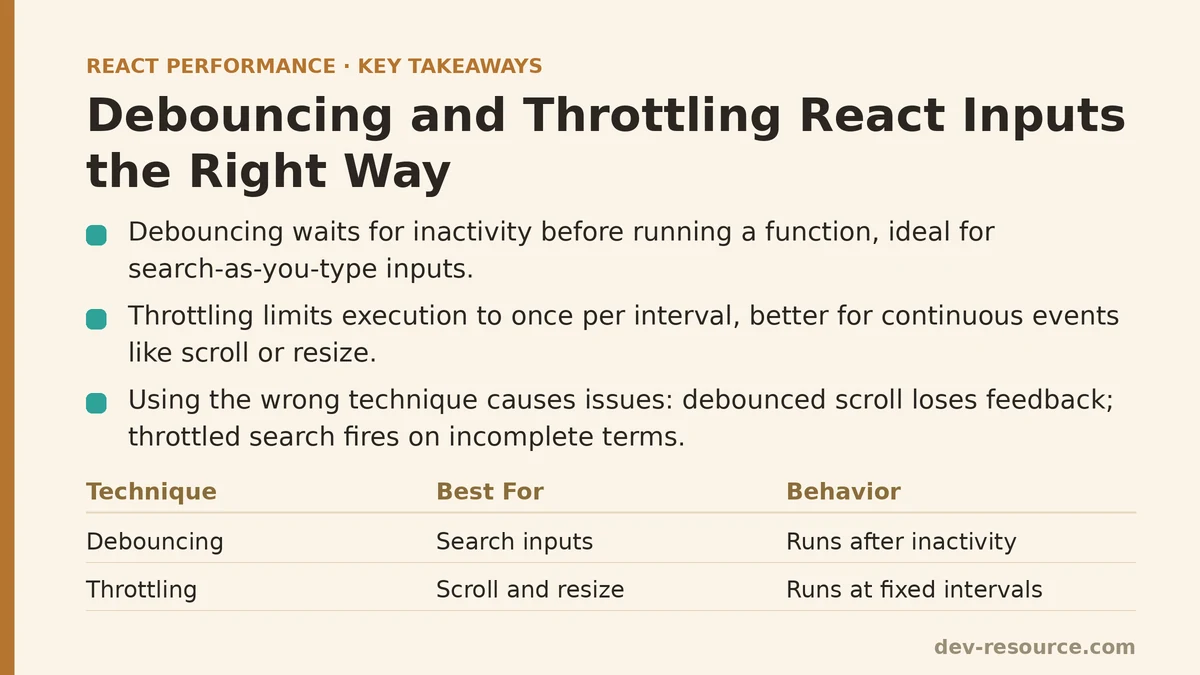
Debouncing holds off on executing a function until a stretch of inactivity has passed since the last trigger. In a search box, that means the search itself only fires once the user has stopped typing for some set duration — not after every character they type.
Throttling caps how often a function is allowed to run, letting it fire at most once per fixed interval no matter how many times it’s triggered. In a scroll handler, that means the handler runs at most once every, say, 200 milliseconds, even though scroll events themselves can fire far more often than that.
Why Debouncing Suits Search Inputs Better
With search-as-you-type, the goal is to wait for a pause in typing before running the (often costly) search, because firing on every keystroke means launching a string of searches that become obsolete the instant the next character lands. Each of those intermediate requests represents work — network or computation — spent on a query the user never intended to submit.
import { useState, useEffect } from 'react';

function useDebouncedValue(value, delay) {
  const [debouncedValue, setDebouncedValue] = useState(value);

  useEffect(() => {
    const timer = setTimeout(() => setDebouncedValue(value), delay);
    return () => clearTimeout(timer);
  }, [value, delay]);

  return debouncedValue;
}

function SearchInput() {
  const [query, setQuery] = useState('');
  const debouncedQuery = useDebouncedValue(query, 300);

  useEffect(() => {
    if (debouncedQuery) {
      performSearch(debouncedQuery);
    }
  }, [debouncedQuery]);

  return <input value={query} onChange={(e) => setQuery(e.target.value)} />;
}
I checked this against real numbers on a search feature backed by an API call. Without debouncing, typing a five-character term fired five separate calls, and most of them were superseded before they even mattered. Add a 300-millisecond debounce, and typing the same term at normal speed produced exactly one API call, triggered once the user paused — the wasted intermediate requests were gone entirely.
Why Throttling Suits Scroll and Resize Handlers Better
Continuous events like scrolling or resizing call for a different approach: you usually want the handler running periodically throughout the interaction, not just once when it’s over. Think of a scroll-position-dependent UI element that should update progressively as the user scrolls, rather than snapping into place only after scrolling stops.
function useThrottledScroll(callback, delay) {
  useEffect(() => {
    let lastCall = 0;
    function handleScroll() {
      const now = Date.now();
      if (now - lastCall >= delay) {
        lastCall = now;
        callback();
      }
    }
    window.addEventListener('scroll', handleScroll);
    return () => window.removeEventListener('scroll', handleScroll);
  }, [callback, delay]);
}
Apply this to a scroll-triggered animation or progress bar, and the handler runs at a controlled, steady rate through the whole scroll — not on every single scroll event (which fires often enough to swamp the handler with far more executions than a smooth visual update needs), and not only once at the very end, which is what debouncing would give you, minus the ongoing feedback you’re after during active scrolling.
Choosing the Wrong Technique for Your Situation
Debounce a scroll handler, and it only fires once scrolling fully stops — the ongoing visual feedback that throttling is built to preserve simply disappears. Throttle a search input instead, and the search still runs periodically while the user types, meaning it may still fire on several intermediate, unfinished terms rather than waiting for the moment the user is actually done — the specific advantage debouncing was supposed to provide.
The underlying question is what kind of interaction you’re dealing with: discrete, completion-oriented input calls for debounce; continuous, ongoing interaction calls for throttle. Matching the technique to that pattern is what makes the difference, not just reaching for “something that limits function calls” and hoping it helps.
A Common Implementation Mistake: Recreating the Debounced/Throttled Function on Every Render
If your debounce or throttle logic gets rebuilt from scratch on every render instead of persisting a stable reference, the whole mechanism quietly breaks. Each fresh instance starts its own timer state from zero, so it never tracks timing across the full, continuous sequence of calls spanning multiple renders — which is the entire point of the technique.
Persisting the timer state with useRef, or reaching for a well-tested utility library that already handles this internally, sidesteps this particular trap far more reliably than a quick custom implementation typically does.
Setting an Appropriate Delay Value
There’s no single correct delay — it depends on the use case and on what feels responsive without tipping into either extreme: too short, and you’re effectively firing on nearly every keystroke despite the debounce; too long, and the interface starts to feel sluggish. For search inputs, somewhere between 200 and 500 milliseconds tends to land well, though testing with real users — or just your own hands on the keyboard — will calibrate this better than any generic recommended number.
A Quick Reference Summary
| Technique | Best For | Behavior |
|---|---|---|
| Debounce | Search inputs, form validation on typing completion | Executes after inactivity period |
| Throttle | Scroll handlers, resize handlers, continuous interactions | Executes periodically during ongoing activity |
What Measuring Actually Confirmed
That before-and-after comparison of API call counts on the search feature gave concrete weight to debouncing’s benefit, rather than just the general assumption that it should help. Five calls dropping to one for a typical search term was the specific number that justified the implementation effort for that feature.
Related guides: Are Your React Dependencies Secretly Slowing You Down?, Automated Performance Regression Testing for React: A Practical Setup Guide, and Building a PWA Caching Strategy for React Performance: The Service Worker That Cut Our Load Times.
🔗 Recommended Reading
- React Performance Mistakes in Fintech Dashboards and How to Fix Them
- Lazy Loading Images and Components in React: A Step-by-Step Tutorial
- React Memoization: When and How to Use memo, useMemo, and useCallback
- Next.js App Router Performance Optimization for Beginners: A Step-by-Step Guide
- Measuring and Fixing React Re-render Performance: A Step-by-Step Walkthrough