📖 5 min read
Invoicing is a critical aspect of running any business, ensuring timely payment for goods and services provided. While sophisticated accounting software offers robust features, many small businesses and freelancers find themselves seeking a simpler, more accessible solution. Excel invoice templates provide an excellent alternative, offering a balance between ease of use, customization, and affordability. These templates allow users to create professional-looking invoices directly within a familiar environment, without the need for expensive software subscriptions or complex training. This guide will explore the various facets of using Excel invoice templates, including their benefits, available options, essential components, and best practices for effective implementation. Understanding these elements can empower businesses to streamline their invoicing processes and maintain accurate financial records.
1. Advantages of Using Excel Invoice Templates
Excel invoice templates offer numerous advantages for businesses seeking efficient and cost-effective invoicing solutions. One of the primary benefits is their accessibility. Most businesses already have Microsoft Excel installed, eliminating the need to purchase new software. This makes it a budget-friendly option, particularly for startups and small enterprises with limited resources.
Furthermore, Excel templates are highly customizable. Users can easily modify the layout, add their company logo, change colors, and include specific fields relevant to their business. This level of customization allows for the creation of professional-looking invoices that reflect the brand's identity. For example, a graphic design company might incorporate its brand colors and logo prominently on the invoice, while a consulting firm might include detailed descriptions of the services provided.
Another significant advantage is the simplicity of use. Excel's intuitive interface and familiar functions make it easy for users to create and manage invoices. Basic knowledge of Excel is typically sufficient to utilize these templates effectively. This reduces the learning curve and allows businesses to quickly implement a streamlined invoicing process. The combination of cost-effectiveness, customizability, and ease of use makes Excel invoice templates a compelling choice for many businesses.
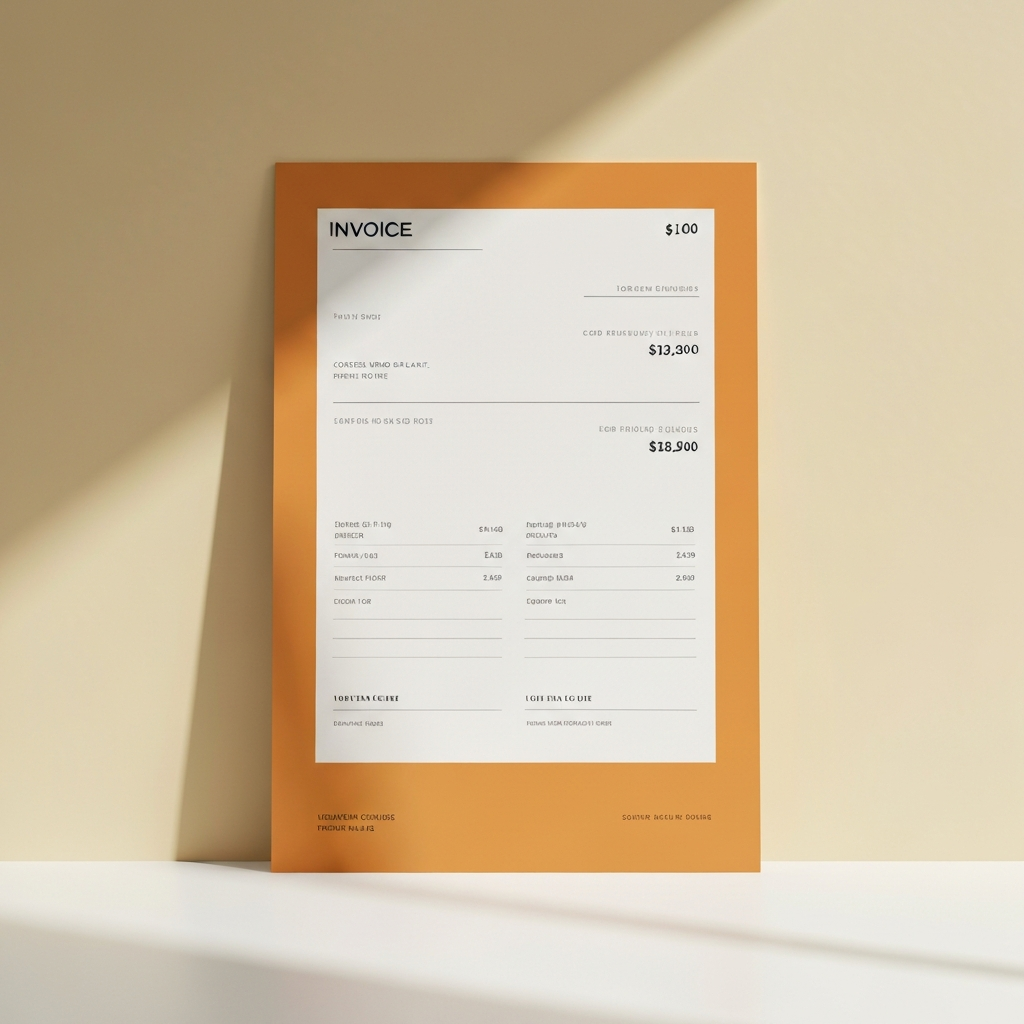
2. Essential Components of an Excel Invoice Template
A well-designed Excel invoice template should include several key components to ensure clarity, accuracy, and professionalism. These components provide all the necessary information for both the seller and the buyer, facilitating smooth transactions and minimizing potential disputes.
- Company Information: This section should prominently display the seller's company name, address, phone number, email address, and logo. Clearly identifying the seller is crucial for legitimacy and easy contact. For instance, a small business might include its logo at the top of the invoice, followed by its full address and contact details.
- Invoice Details: Essential invoice details include the invoice number, invoice date, and payment due date. The invoice number serves as a unique identifier for tracking and referencing the invoice. The invoice date indicates when the invoice was issued, and the payment due date specifies the deadline for payment. For example, an invoice number might be in the format INV-2024-001, with an issue date of July 15, 2024, and a due date of August 15, 2024.
- Customer Information: This section should include the buyer's company name (if applicable), contact person, address, and any other relevant details. Accurate customer information ensures that the invoice is delivered to the correct recipient. For example, if invoicing a large corporation, it's important to include the specific department or contact person responsible for processing payments.
3. Optimizing Your Excel Invoice Template for Efficiency
Pro Tip: Leverage Excel's built-in functions like SUM, SUBTOTAL, and IF to automate calculations and conditional formatting, minimizing manual data entry and potential errors.
To maximize the efficiency of your Excel invoice template, consider implementing several optimization techniques. One crucial aspect is automating calculations. Excel's built-in functions, such as SUM for calculating totals and SUBTOTAL for excluding certain items (like discounts), can significantly reduce manual effort and ensure accuracy. For instance, you can use the SUM function to automatically calculate the total amount due by summing the amounts of all line items. Similarly, the SUBTOTAL function can be used to calculate the subtotal before taxes and discounts are applied.
Another valuable optimization technique involves using data validation to create dropdown lists for common items or services. This reduces the risk of errors and ensures consistency in your invoices. For example, you can create a dropdown list for frequently used product descriptions or service types, allowing users to select from a predefined list instead of manually typing the information each time. This not only saves time but also minimizes the chance of typos or inconsistencies.
Conditional formatting can also be used to highlight important information, such as overdue invoices or invoices exceeding a certain amount. This visual cue can help you quickly identify critical items that require attention. For instance, you can set up conditional formatting to automatically highlight invoices that are past their due date in red, making it easier to track outstanding payments and prioritize collection efforts. By implementing these optimization strategies, you can transform your Excel invoice template into a powerful and efficient invoicing tool.
Conclusion
Excel invoice templates provide a versatile and accessible solution for businesses looking to streamline their invoicing processes. By understanding the benefits, essential components, and optimization techniques, businesses can create professional-looking invoices that improve efficiency and accuracy. The ability to customize templates to reflect brand identity and automate calculations further enhances their value.
As technology continues to evolve, cloud-based invoicing solutions offer advanced features such as automated payment reminders and integration with accounting software. However, Excel invoice templates remain a viable option for many businesses, especially those seeking a simple, cost-effective, and customizable solution. By staying informed about the latest trends and best practices, businesses can leverage Excel to optimize their invoicing processes and ensure timely payments.
❓ Frequently Asked Questions (FAQ)
Can I automatically generate invoice numbers in Excel?
Yes, you can automatically generate invoice numbers in Excel using formulas. The most common approach involves combining a prefix (e.g., "INV-") with a sequential number. You can use the ROW function to generate a sequential number based on the row number, or you can create a separate counter cell that increments with each new invoice. For example, if cell A1 contains the last invoice number, you can use the formula "="INV-"&A1+1" to generate the next invoice number. This automation ensures that each invoice has a unique and consistent identifier, simplifying tracking and organization.
How do I add my company logo to an Excel invoice template?
Adding your company logo to an Excel invoice template is a simple way to enhance its professionalism and brand identity. First, ensure that your logo is saved as an image file (e.g., JPEG, PNG). In Excel, go to the "Insert" tab and select "Pictures." Choose the "This Device" option and navigate to the location of your logo file. Once inserted, you can resize and position the logo as needed, typically in the header section of the invoice. Experiment with different placements and sizes to find the optimal look for your brand, ensuring it doesn't obscure essential invoice information.
What is the best way to track invoice payments using Excel?
Tracking invoice payments in Excel can be effectively done by adding a "Payment Status" column to your invoice template. Use data validation to create a dropdown list with options like "Paid," "Unpaid," and "Overdue." When a payment is received, update the status accordingly. Additionally, consider adding columns for the payment date and payment method to maintain a comprehensive record. You can also use conditional formatting to highlight overdue invoices, allowing for quick identification of outstanding payments. For more advanced tracking, you could create a separate worksheet to summarize payment data, providing insights into your cash flow and payment patterns. Regularly updating and reviewing this data is crucial for effective financial management.
Tags: #Excel #InvoiceTemplate #BusinessFinance #SmallBusiness #Accounting #Spreadsheet #Invoicing